
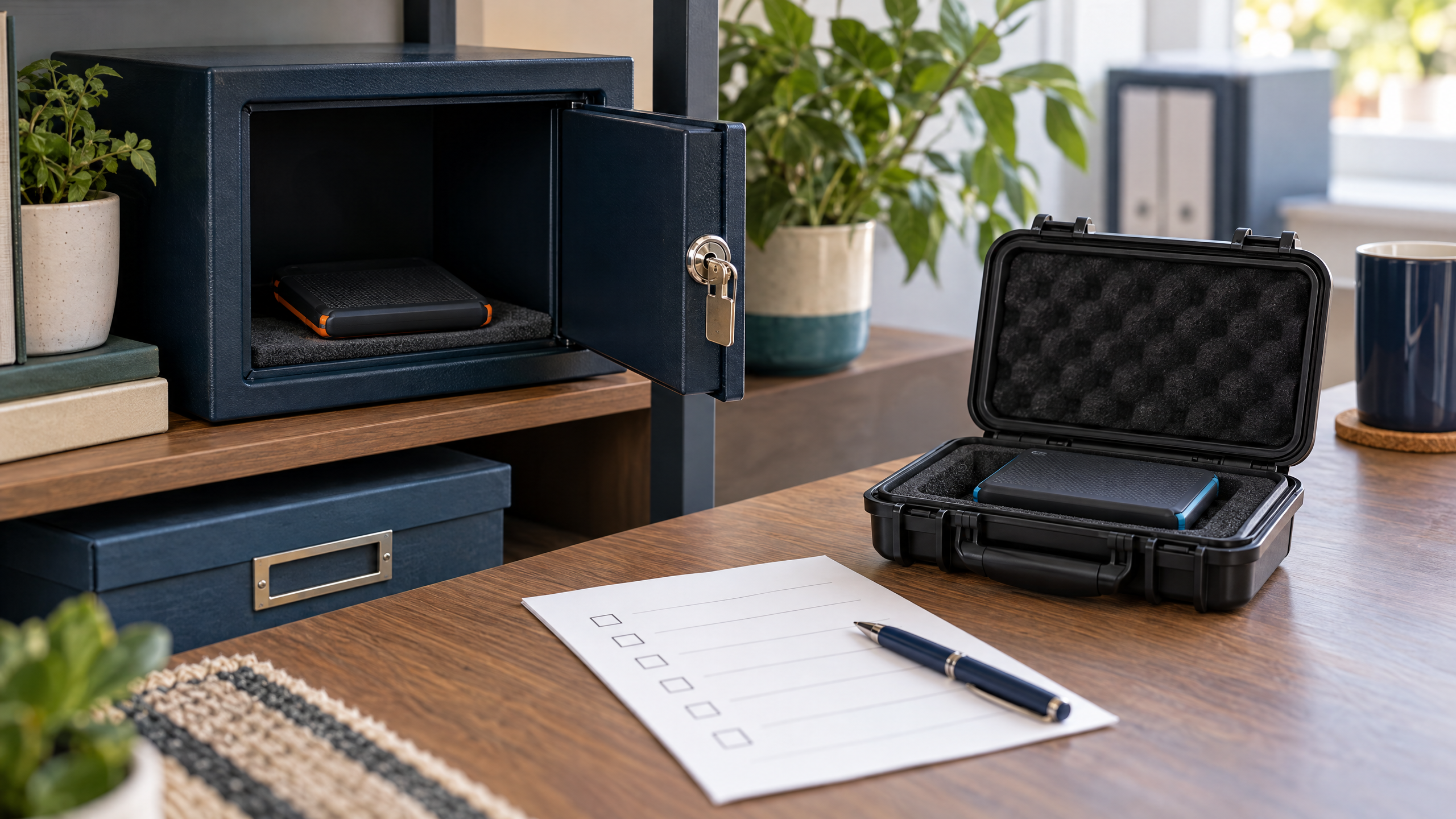
To back up a WordPress site safely, save both its files and database, keep protected copies separate from the live website, and test a restore in a staging or isolated environment. WordPress’s backup documentation explains that the files and database are separate parts of a typical site backup; both are needed for a complete restore.
If you are looking for guidance on how to back up a WordPress site, this checklist covers the practical checks that help an SME prepare before an outage, failed update or security incident. A complete WordPress site backup is useful only if the right people can find it, it is recent enough for the business, and it can be restored without making a bad situation worse.
1. List what your WordPress site backup must include
Start with the parts that make the site work. For WordPress, that normally includes the database and site files such as the core installation, themes, plugins, uploads and configuration. WordPress explains that the database and files are separate parts of a typical site backup; keep them together as one dated backup set where possible.
Also note the services that may sit outside the WordPress backup: domain registration, DNS, business email, payment providers, analytics and hosting access. These may need separate recovery steps. Record where each service is managed and who can authorize changes. Do not put passwords or secret keys in an unprotected checklist.
2. Choose a backup schedule based on how quickly the site changes
Ask: “How much recent website activity could we afford to lose?” A brochure site that changes once a month has a different backup need from an online store receiving orders every hour. WordPress’s documentation suggests weekly backups for smaller, lower-activity sites and daily backups for more active sites, but the right schedule depends on how often content or transactions change and the business’s tolerance for loss.
If the website accepts orders, bookings or customer submissions, check whether those records are stored in the WordPress database or another platform. A site-file backup may not include data held by a third-party service.
3. Keep more than one protected copy
Do not assume that a backup stored only beside the live website will survive every hosting failure or security incident. The WordPress documentation recommends keeping several recent copies in different locations. For ransomware resilience, CISA recommends offline, encrypted backups of critical data and regular testing of their availability and integrity.
For a small business, the practical questions are: Are copies stored separately? Are they protected from casual deletion? Who can access them? How long are they retained? Check the answers with your hosting provider or maintenance team rather than assuming the word “backup” covers every detail.
4. Check that a WordPress backup completed—and contains what you expect
Review the last successful backup date and confirm that both the database and required files are included. Check whether the process reports failures, whether alerts go to a monitored inbox, and whether there is enough retention to go back before a problem was noticed.
A green “completed” message is a useful signal, but it is not proof that a full recovery will work. A missing database export, incomplete uploads folder or inaccessible archive can make a backup unusable.
5. Test the restore away from the live site
Restore a copy to a staging or isolated test environment before relying on it. Avoid overwriting the production site just to see whether a backup works. If you are not responsible for hosting or recovery, ask the host or maintenance provider to run the test and explain the result.
After restoration, check more than the homepage. Confirm that important pages, images, menus, forms, logins and—where relevant—product or booking flows work. Check links, HTTPS and any connected services. Keep a short record of the backup date, test date, problems found, time taken and person responsible for follow-up.
6. Keep a simple recovery note
Write down where the current backups are, how to request a restore, who can approve it, who has access and how to reach the hosting or maintenance provider. Keep this note somewhere the business can access if the website or primary email account is unavailable. Review the contact details after staff or provider changes.
7. Repeat the check after meaningful changes
Run a restore test periodically and after major changes such as a redesign, hosting move or significant update. If the WordPress site changes frequently, review the backup schedule more often. The aim is not to create a complicated disaster-recovery manual; it is to find out early whether the site can be brought back with the right data and the right people available.
Quick questions
How often should a small business WordPress site be backed up?
Use the rate of change and acceptable data loss to set the schedule. WordPress suggests weekly backups for smaller sites and daily backups for more active sites; a transaction-heavy site may need more frequent coverage or separate transaction records.
Is a successful backup log enough?
No. A completion log confirms that a process ran, but a restore test checks whether the stored copy is complete, accessible and usable.
Should we test a restore directly on the live website?
Usually, test in staging or another isolated environment first. Restoring over production can overwrite current information or interrupt customers. Coordinate any production recovery with the site owner and hosting or maintenance provider.
A practical WordPress site backup plan is one the business can explain and safely test—not just a setting that was enabled once. Engage24’s Maintenance Plans describe regular backups, WordPress updates, monitoring and monthly health reports. If you are unsure what your current backup includes, ask Engage24 about maintenance options and confirm the retention and restore-testing arrangements that fit your site.
Sources
- WordPress Advanced Administration Handbook: Backups — complete site backup components and practical backup guidance.
- CISA #StopRansomware Guide — offline, encrypted backups and regular availability/integrity testing. This is general cyber-resilience guidance, not a South African legal requirement.
- Engage24 Maintenance Plans — current verified service scope and CTA.